Conversion settings
Control how CVtoBlind processes your CVs — summaries, anonymization, date formatting, and more.
Written By Łukasz Myśliński
Last updated 4 months ago
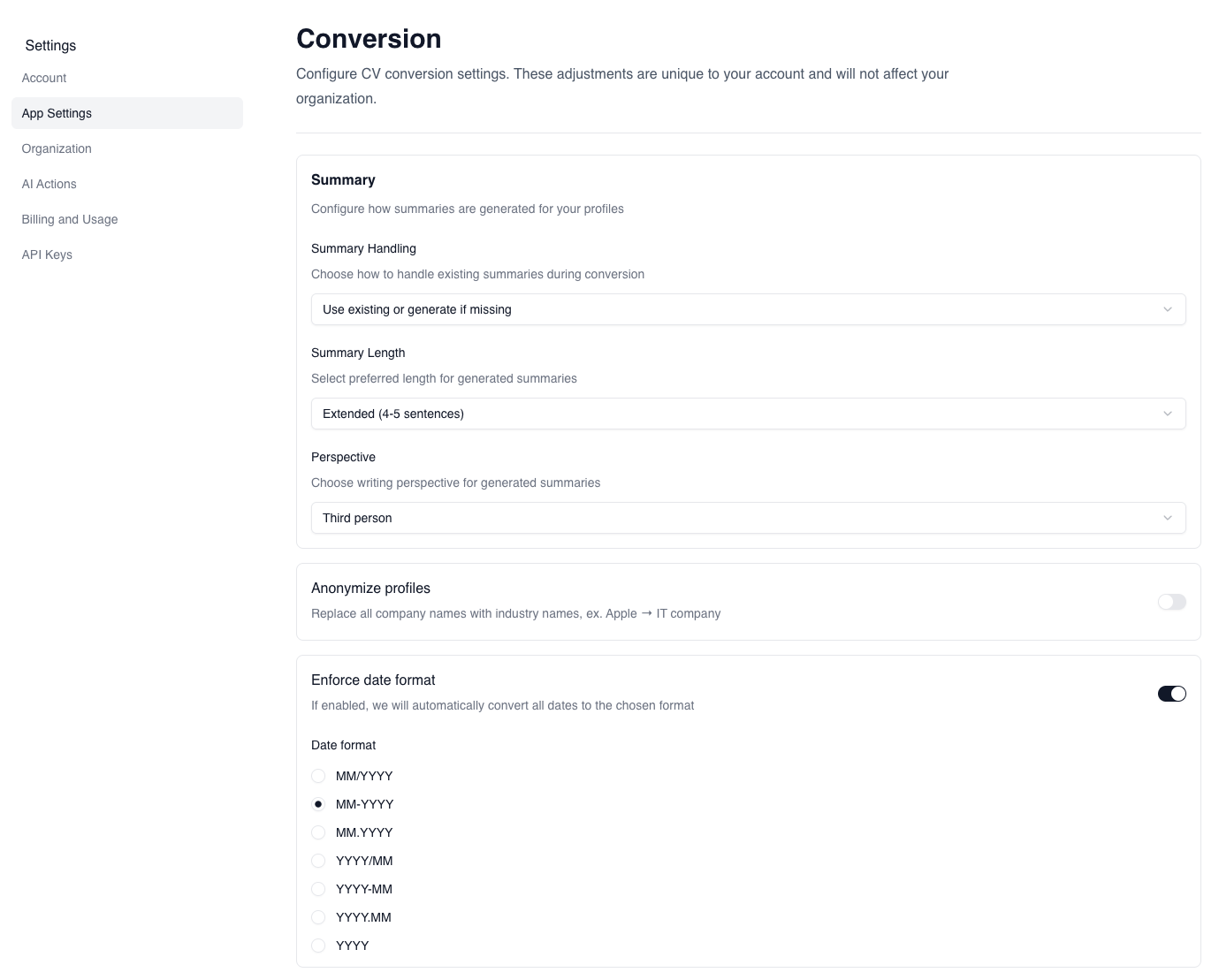
Conversion settings let you control how CVtoBlind processes CVs at the point of conversion. These are per-user preferences — each team member can configure them independently. You'll find them at Settings → Application.
Available settings
Generate summary
When enabled, CVtoBlind will automatically generate a professional summary for any CV that doesn't already include one. Useful for candidates whose CVs skip the summary section entirely.
Anonymize profiles
When enabled, company names in work experience entries are replaced with generic industry descriptions — for example, "T-Mobile" becomes "Telecom company" and "JP Morgan Chase" becomes "US Bank". Use this when you want to present candidates without revealing their employer history to clients.
Enforce date format
Choose how dates are formatted throughout the profile and in exported templates. Setting a consistent format ensures all profiles in your organization look uniform regardless of how dates were written in the original CV.
When do these settings apply?
Conversion settings are applied at the moment a CV is processed — they affect newly uploaded CVs, not existing profiles. If you change a setting and want it applied to an existing profile, you'll need to re-upload the CV.