Exporting to Google Drive
Connect your Google Drive and export profiles straight into a Drive folder as PDF or DOCX.
Written By Łukasz Myśliński
Last updated 22 days ago
Connect your Google Drive to CVtoBlind and send exported profiles straight to a Drive folder — no download-and-re-upload step. Exports work in both PDF and Word (.docx), using the same templates as a normal export.
Connecting Google Drive
The connection is per user — each person on your team connects their own Drive account.
Go to Settings → Account and find the Integrations section.
Next to Google Drive, click Connect.
Sign in with your Google account and approve the request.
Once you're back in CVtoBlind, the Google Drive row shows a green Connected badge.

What CVtoBlind can access
CVtoBlind requests the narrowest Google Drive permission available (drive.file). That means it can only see and manage the files it creates and the folders you explicitly pick. It cannot browse, read, or modify the rest of your Drive.
Exporting a profile to Drive
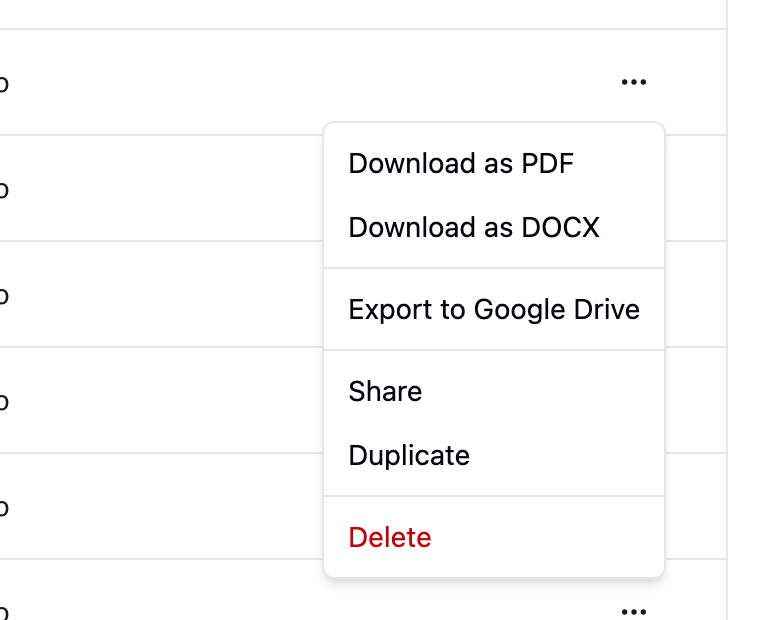
On the Profiles list, open the ⋯ menu on the profile you want to export and choose Export.
Pick a folder. You can export to My Drive, reuse one of your recent folders, or choose "Choose another folder…" to open the Google Drive picker and browse.
Pick a format — PDF or Word (.docx).
Optionally toggle Open after export to have the file open in a new browser tab as soon as it's uploaded.
Click Export.
The file name matches the one used for a regular download, and the layout comes from your selected template.
Recent folders
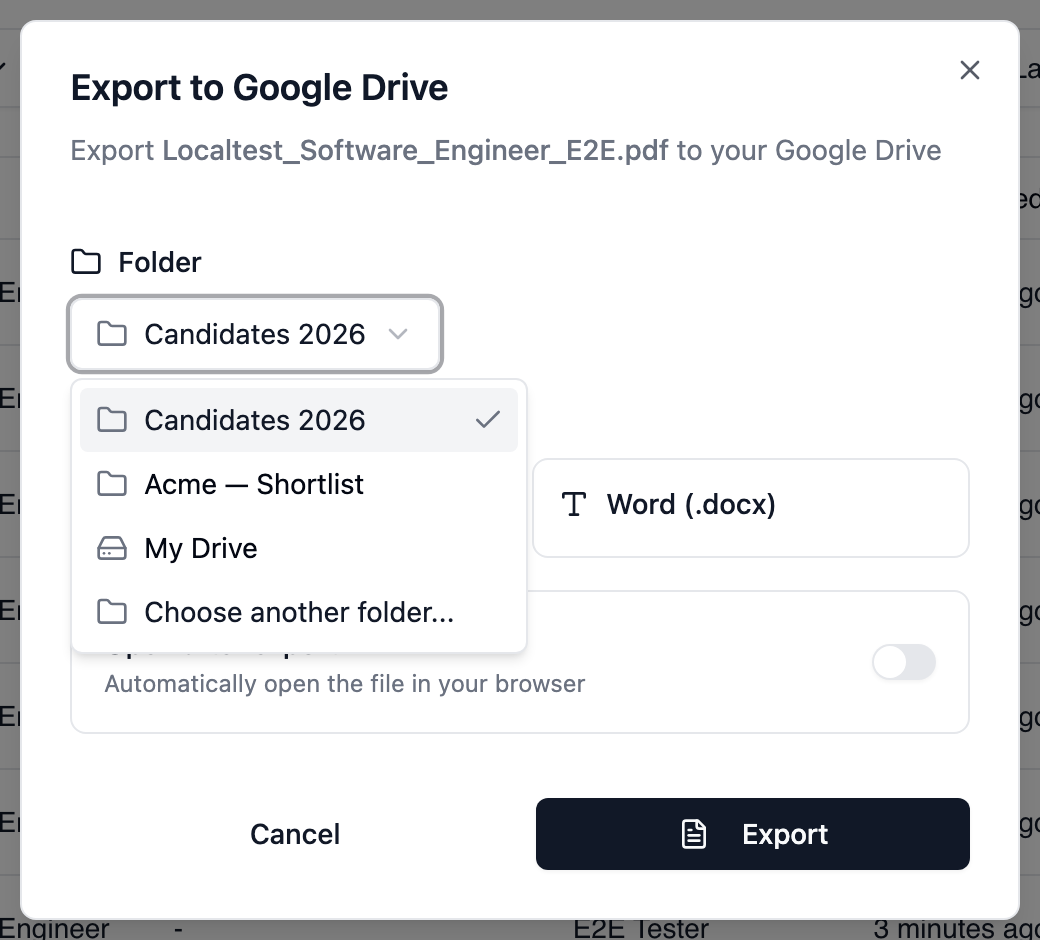
CVtoBlind remembers the folders you've exported to recently and offers them at the top of the folder list. The folder you used last is pre-selected when you open the dialog, so repeat exports are a couple of clicks.
Disconnecting
Go to Settings → Account → Integrations, open the ⋯ menu next to Google Drive and choose Disconnect. This revokes CVtoBlind's access with Google and deletes the stored tokens. Files already exported stay in your Drive.
Troubleshooting
"Google Drive Not Connected" when opening the export dialog — you haven't connected yet, or you disconnected. Use Go to Settings in the dialog to connect.
"Google Drive connection expired, please reconnect" — this happens if access was revoked from your Google account settings. Reconnect from Settings → Account.
The folder picker doesn't open — it needs a moment to load after the dialog opens, and pop-ups must be allowed for CVtoBlind. Until it's ready, the "Choose another folder…" option stays greyed out.